How to use Orthagonal Viewer in Elements
On this page
NIS Elements includes a standard orthogonal slice viewer, but another neat feature is the standard Xz/Yz maximum intensity projections available. Here are the steps to get the most out of this view:
1 – Open your Z Stack in Elements.
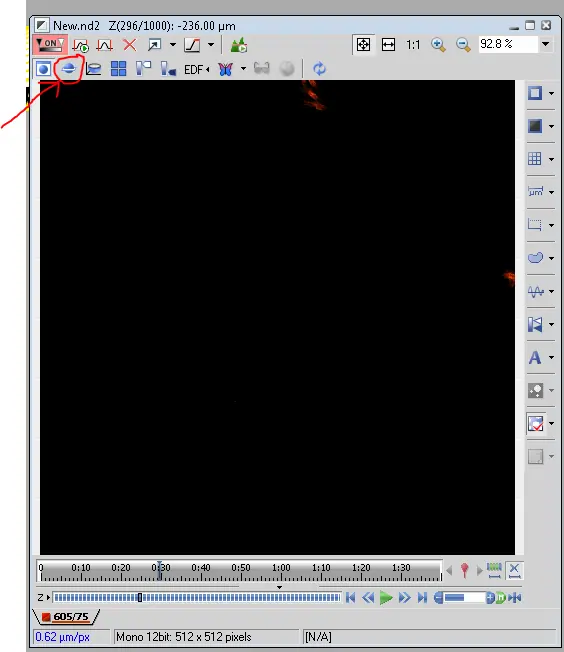
2 – Select the “Slice Viewer” Icon. Elements will create a new Slice View window.
3. In the new window, select the far-left control that reads “Slices” and set it to “Maximum”.
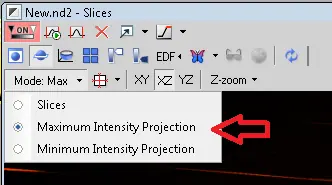
4. You should now see three dimensional maximum projections: XY, XZ and YZ. Un-Check the dimensions you don’t desire. I usually end up with XZ.
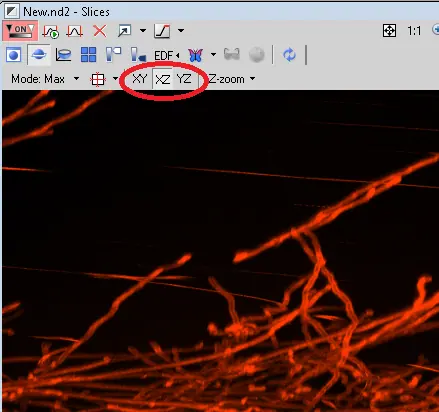
5. At this point you can scale the image for display, then right-click and select “Create New Document from current view”. This document can be saved as any format you prefer.
***Note that the single pane view for some reason doesn’t accurately render the Z scaling. You may want to try different “Z Zoom” settings and then creating a document until the image is redndered to your preference.

***Special thanks to Clarissa Nobile PhD @ UCSF for the use of her excellent image stack!
-Austin